 SlowPBX
The web pages
Your voicemail, your greetings and your own settings, in a browser.
Every office has its own SlowPBX address; yours comes from whoever runs your system. The pages are for your settings and messages. Calls themselves are made on a desk phone or in the app, not in the browser.
Signing in
Sign in with the username and password you were given. Leave “Keep me signed in on this browser for 30 days” unticked on a computer you share.
The first time, you set up two-factor sign-in:
- Scan the code on the page with an authenticator app on your phone.
- Type the six-digit code the app shows, and press Turn on 2FA.
- Save the recovery codes the page then shows. They are shown once, and each one gets you in once if you lose your phone.
After that, signing in asks for your password and a code from the authenticator app.
There is no “forgot password” link. If you forget your password or lose your authenticator, your office manager or an administrator can set a new password or reset your two-factor sign-in.
Sign out is beside your name at the top of every page.
Voicemail
The page you land on. It lists your own messages and those of any shared mailboxes you belong to; the chips at the top show one mailbox at a time.
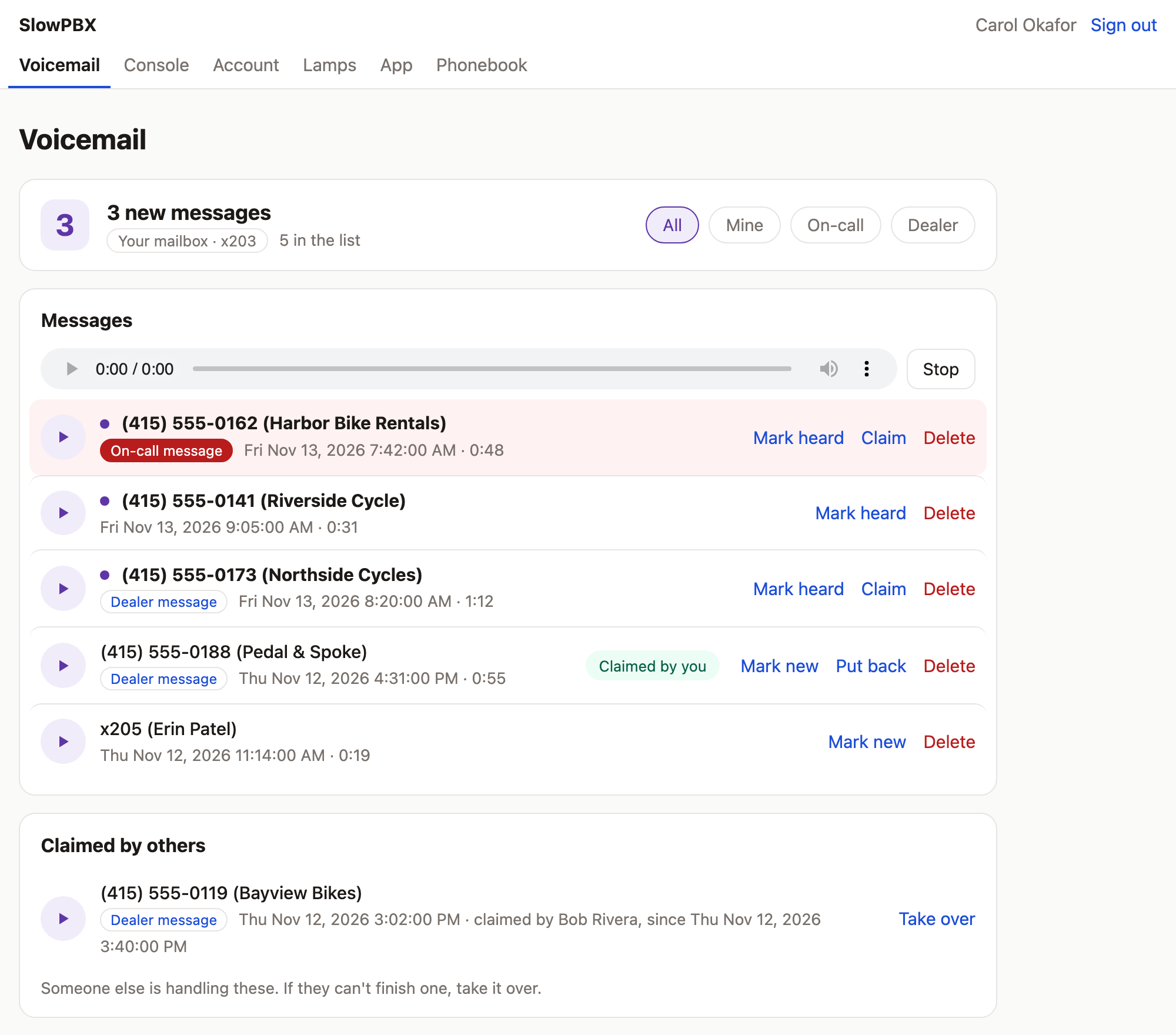
| Play | The round button plays the message in the player at the top. Playing a message marks it heard: for a shared message, heard for you only. |
|---|---|
| Mark heard / Mark new | Change it by hand. |
| Claim / Put back | For a shared mailbox’s message. See claiming. |
| Take over | Under Claimed by others: take a message from the colleague who claimed it. You are asked to confirm. |
| Delete | Moves it to the trash. |
| Trash | Open it at the bottom of the list and press Restore. A shared mailbox’s trash is shared by its members. |
Greetings
Under Your greetings on the Voicemail page there are three: the one callers hear when you don’t answer, the one they hear when you are on another call, and a temporary one that replaces both while it is on.
- To record one, use a desk phone: *97, then 0. The steps.
- To type one, press Type a greeting, write what callers should hear, Preview it, and save. It is spoken in your office’s voice. Don’t type anything private: the text is sent to a speech service to be spoken.
- A temporary greeting can be given a last day, “On through”, after which your usual greetings come back by themselves.
- Play and Delete are beside each greeting. With none, callers hear a standard one.
Voicemail PIN
The PIN is for reaching your voicemail from a phone that isn’t yours. Set it under Voicemail PIN on the Voicemail page: 6 to 12 digits. Simple ones (one digit repeated, a run like 123456, your extension) are refused.
Console
The console shows the office’s calls as they happen, and lets you move the ones that are yours.
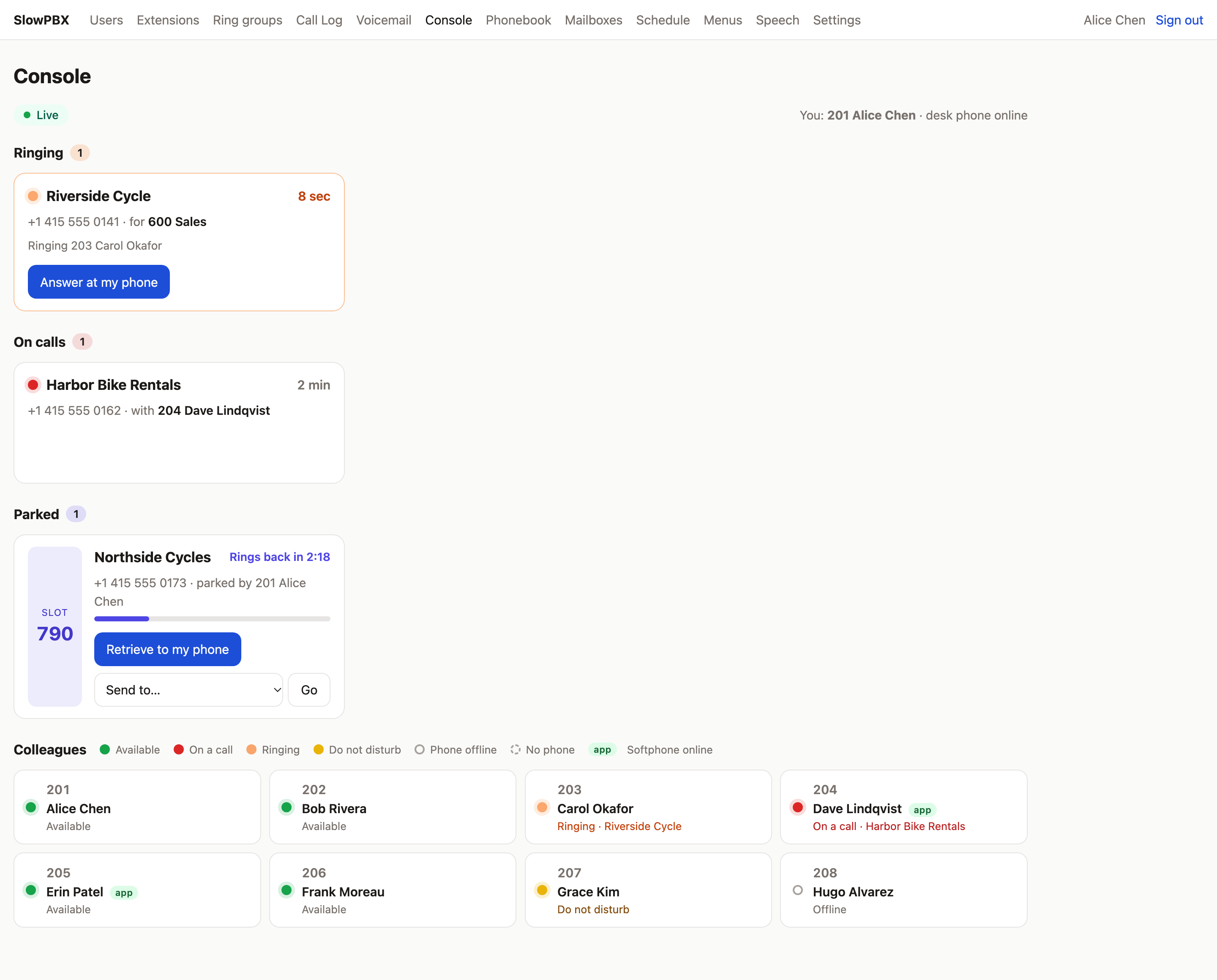
| Ringing | Each call ringing in the office and whom it is for. Answer at my phone rings your desk phone with it. |
|---|---|
| On calls | Who is talking to whom. On your own call, Park parks the caller and Transfer to sends the caller to an extension or ring group. You can’t park or transfer someone else’s call. |
| Parked | Each parked call, with the time left before it rings back to whoever parked it. Retrieve to my phone rings your desk phone with it; Send to rings another extension. |
| Colleagues | A light and a line for each person: available, on a call, ringing, do not disturb, phone offline, or no phone. A small “app” mark means their app is open. |
Account
| Your details | Your name, email address and mobile number. Voicemail notices go to the email address. Your username, role and extension are set by an administrator. |
|---|---|
| Password | Change it here: 12 characters or more. |
| On-call alerts | If you take on-call messages, choose how you are told: a text message, or an alert in the iPhone app. If the app can’t be reached, a text is sent anyway. |
| Blocked callers | See who you have blocked lists the numbers you blocked, each with Unblock. |
Lamps
Choose which colleagues have a lamp key on your desk phone, and in what order. Tick the people, move them with the arrows, and press Save. The page says how many keys your phone has room for. Show everyone, in number order goes back to how the phone came. What the lamp keys do.
App
Download the Mac app, install the iPhone app, and link either to your extension. The steps.
Phonebook
The office’s list of outside numbers, and your colleagues’ mobile numbers. The app searches the same list when you type a name. Your office manager keeps it.