 SlowPBX
For office managers
The day-to-day running of the office’s phones: who is on call, when the office is closed, what the phone menu says, and who has an extension.
An office manager sees everything an ordinary user does, plus the pages below. Some things on these pages are an administrator’s: each section says which. A switch at the top of the page shows you the pages as an ordinary user sees them, which helps when someone asks you where something is.
Who is on call
The Schedule page shows what the office is doing now (open or closed, and who is on call) and a calendar of the month. Point at a day, or tap it, to see that day in full.
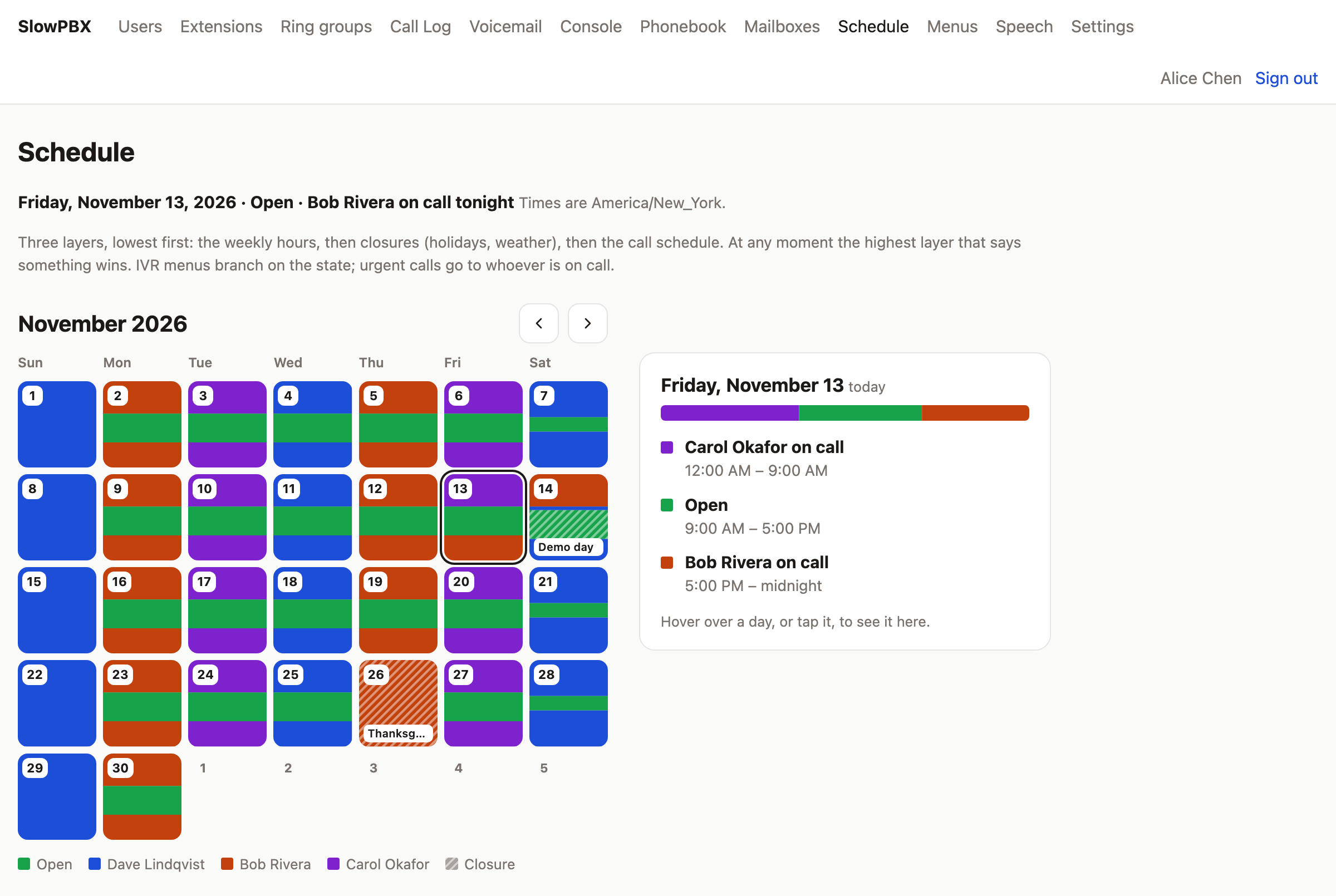
The usual rotation, week by week, is set up by an administrator. You make the changes to it:
- Open the Call schedule tab.
- Under Put someone on call, choose the person, when it starts and when it ends, and press Add.
For those hours that person is on call in place of whoever the rotation names; afterwards the rotation carries on. Use it for a swap, a holiday or someone off sick.
- Upcoming and Past list the changes. Open one to change its times, or Remove it.
- End now ends one that is running.
- If a name is missing from the list, an administrator adds it.
Whoever is on call when an urgent message arrives is the person told about it. How the on-call mailbox works.
Closures and holidays
The office’s weekly hours are an administrator’s to set. You add the exceptions: a holiday, a staff meeting, a day the weather closes the office, or a day you open when you usually wouldn’t.
- On the Schedule page, open Closures and holidays.
- Under Add a closure, say what it is, choose its type, when it starts and when it ends, and press Add closure.
While it runs, callers get the phone menu for that state (the closed greeting, for example) instead of the usual one for that hour. It ends by itself. Check the calendar afterwards: the day should show the change.
Phone menus
The Menus page lists the menus callers hear. A menu is made of cards: each card says something and then acts on the key the caller presses.
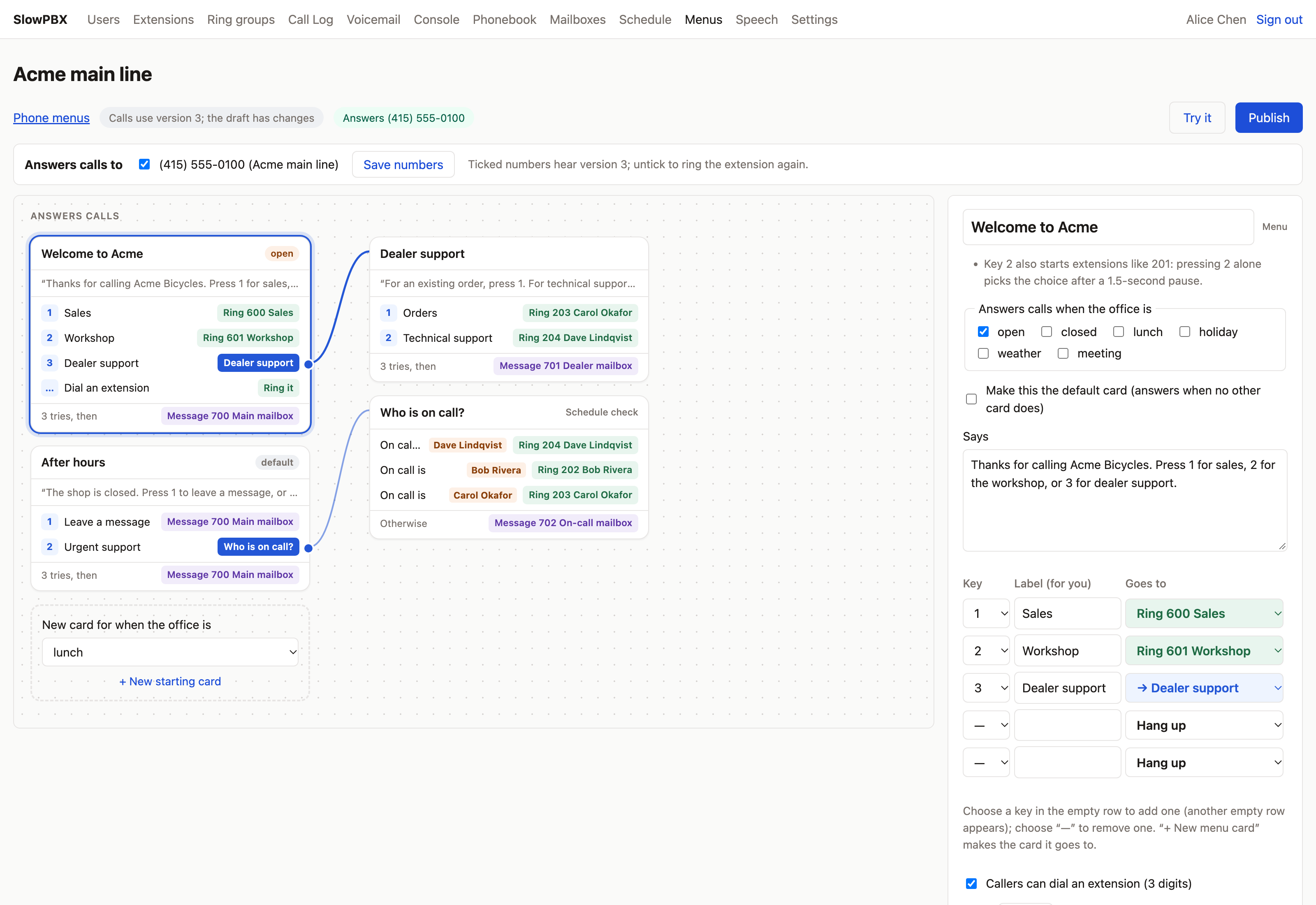
To change a menu:
- Open the menu and click a card on the map.
- Change what it says. Hear it plays the words in the office’s voice.
- Change its keys: for each, a label for your own reference and where the caller goes.
- Press Save card.
- Try it: choose when the pretend call comes in, start it, and press keys as a caller would. The page shows what the caller would hear and where they would end up. Nothing is dialed. A try you save as a test call is run again before every publish, so a later change that breaks it shows up.
- Press Make the prompts if the page asks for it, then Publish.
Your changes are a draft until you publish. Callers hear the published menu, so a half-finished change does no harm, and nothing changes for callers until you press Publish.
Don’t put anything private in a prompt: the words are sent to a speech service to be spoken.
Adding a menu, adding or removing cards, and choosing which hours a card answers are an administrator’s.
Shared mailboxes
On the Mailboxes page you look after each shared mailbox:
- Change members: tick the people who should see its messages, and save.
- Greetings: type or record what callers hear before the tone, and set a temporary one for a holiday.
Creating a mailbox, and choosing which one is the on-call mailbox, are an administrator’s.
Users
The Users page lists everyone with a sign-in.
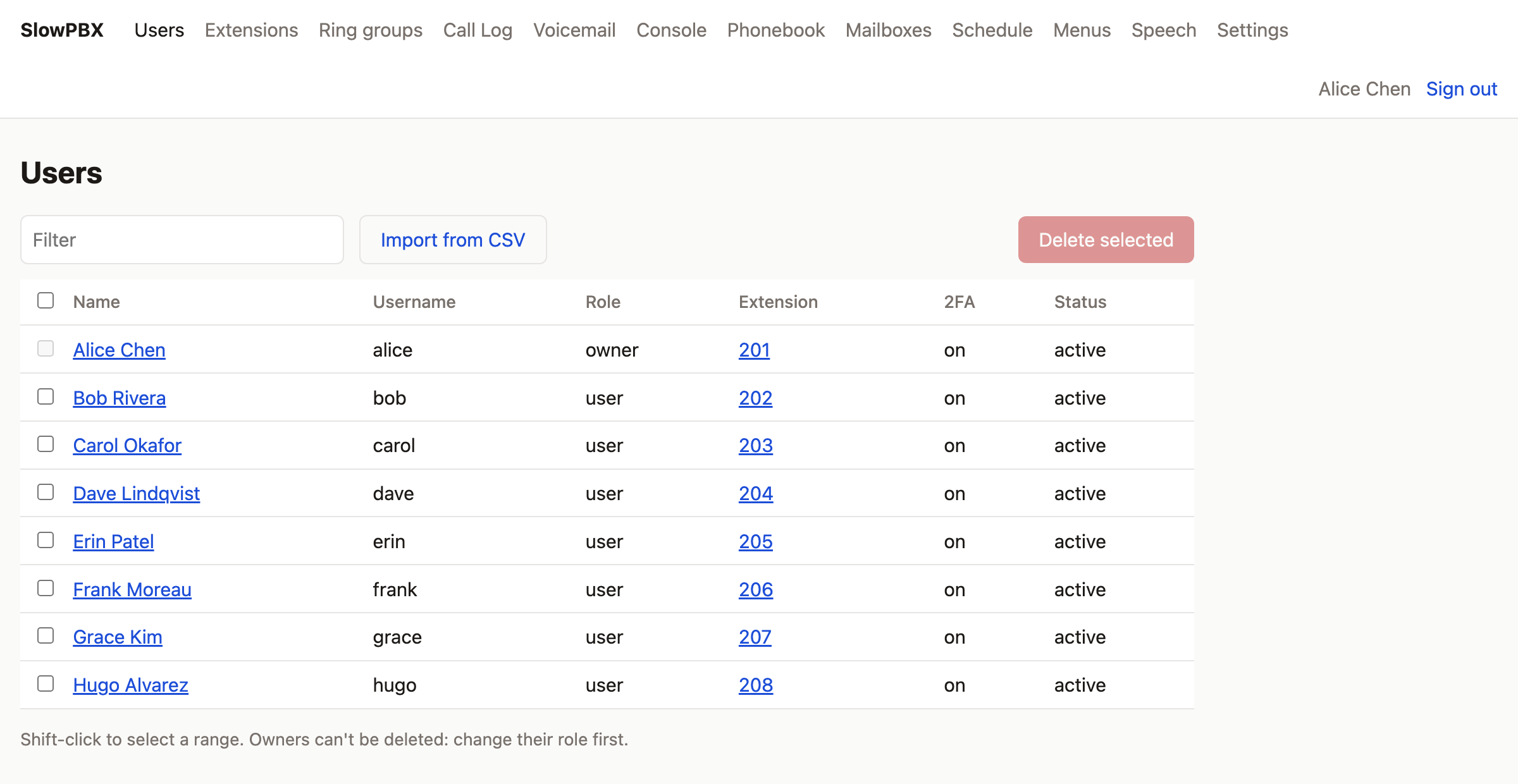
- To add someone, fill in Add a user: name, username and role. Then open the new user and Set a password to give them. They set up two-factor sign-in themselves the first time they sign in.
- Forgotten password: open the user and Set a new password.
- Lost phone or authenticator: Reset 2FA. They set it up again at their next sign-in.
- Someone leaves: edit their details and set their status to disabled. They are signed out everywhere at once.
You can add and change receptionists, users and on-call-only users. Administrators’ and owners’ accounts are not yours to change, and deleting a user is an administrator’s.
| Role | For |
|---|---|
| User, Receptionist | Anyone with a phone. Their own voicemail, console, lamps and app. |
| On-call only | Someone who takes on-call messages and has no phone in the office. Voicemail, account and the app only. |
| Office manager | The pages in this chapter. |
| Administrator | Sets up phones, ring groups, numbers and the weekly schedule. |
| Owner | Everything, including the system’s settings. |
Extensions
A new person needs an extension as well as a sign-in. On the Extensions page, fill in Add an extension: the number, whom it is for (a user, or “shared” for a phone that belongs to a place), and the name to show. Rename changes the name later.
An administrator then sets up the extension’s desk phone. The person links the app themselves, from their App page.
Blocking
The Blocking page holds the company’s list of numbers that may not call the office.
- What would happen to a number? Type a number and press Check to see whether it would ring through, be asked to press 5, or be turned away, and why. Start here when someone says a caller can’t get through.
- Blocked numbers: add a number, or the start of one to block every number that begins that way. Each is either turned away or asked to press 5 first.
- Blocked by one person: the numbers people have blocked for themselves. You can remove one if it was blocked by mistake.
The list of numbers that are always let through, and the limits on how many calls one number may make, are not yours to change: the list is an owner’s, the limits an administrator’s.
Phonebook
You keep the office phonebook that everyone searches from the app and sees on the web: Add a name and number, change or Delete one, or Upload CSV to add many at once. It is for business contacts such as suppliers and partners, not for customers’ or clients’ personal numbers.
What needs an administrator
| Phones | Adding a desk phone to an extension, or replacing one. |
|---|---|
| Ring groups | Who is in a group and how it rings. |
| Schedule | The weekly hours, the weekly on-call rotation, and the names in it. |
| Menus | New menus and cards, and which hours each answers. |
| Mailboxes | A new shared mailbox; which one is the on-call mailbox. |
| People | Deleting a user or an extension; unlocking a voicemail PIN; unlinking a lost device. |